My Azure Journey #1: Free Trial Sizing Headaches (and finally fixing Ubuntu RDP)
What I wish someone had told me before I burned an hour on quota errors and a GUI-less Ubuntu box

Hello everyone! I'm a frontend guy who's never really touched Azure before. But my new project demands it, so here I am, fresh off signing up for the free trial last weekend.
My initial plan was simple: learn the core services first. Head to YouTube, search "Azure services for beginners," and do the hands-on stuff in parallel. After I went through the VM tutorials, I decided to spin up a Windows VM since Windows just has Remote Desktop built in — no setup needed. Went to the portal... and nothing worked.
Quota errors, weird region restrictions, vm size NotAvailableForSubscription (cool error message, very helpful, thanks Microsoft). I probably burned an hour just retrying different combos before I understood what was actually going on.
This is the first part of my record of the mess so that future-me (and perhaps you) won't have to go through it again.
Issue #1 — the free tier VM sizing trap
Here’s what I wish someone had just told me up front:
As soon as you pick a Windows image, Azure auto-fills the VM size with whatever the image creator recommends. Sounds helpful, except that size is usually not available for free trial accounts, so you just get slapped with a "not available for this subscription" error, no explanation.
The Fix is annoying but simple: manually flip through regions and zones yourself until one sticks, and double-check the minimum supported size for whatever image you picked.
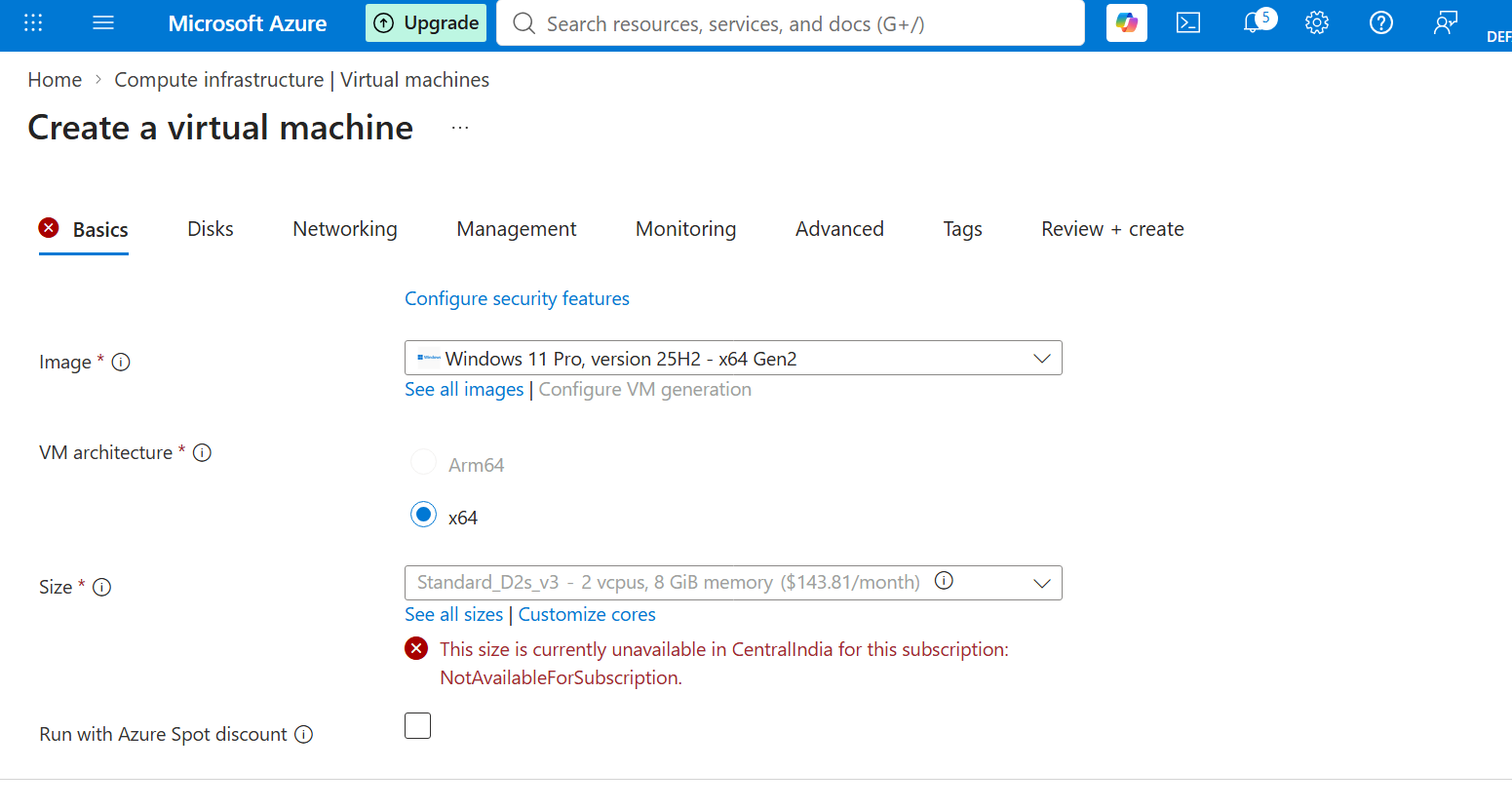
After googling for some time, I figured out that Bv2 series - 750 free hours. You want Standard_B2ats_v2 (AMD) or Standard_B2ts_v2 (Intel). Not obvious from the dropdown, you kind of have to search for it by clicking on see all sizes options.
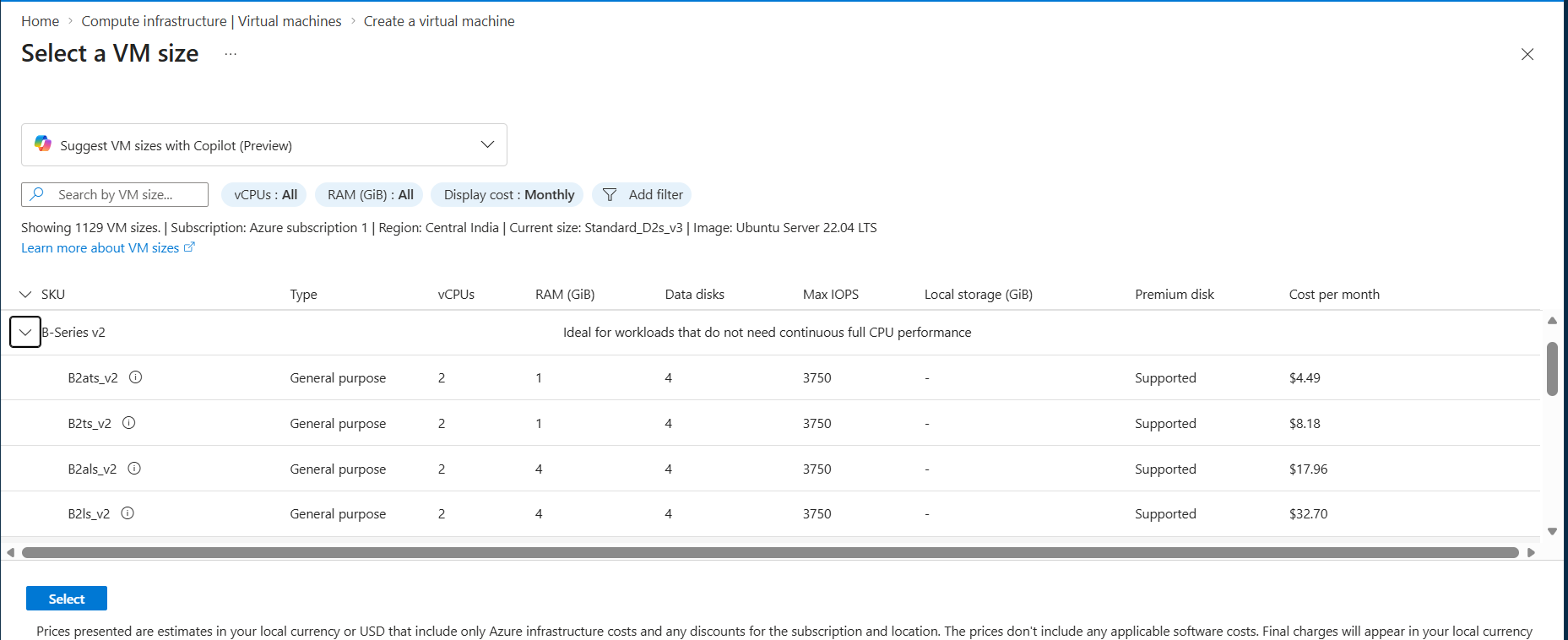
Both of those give you 2 vCPUs but only 1 GiB of RAM. Which is… not a lot.
I tried Windows Server 2025 (Smalldisk) first since it comes with a real desktop UI out of the box. But it was very slow on 1GiB RAM.
Went with Ubuntu Server 22.04 LTS in the end. Almost grabbed 24.04 since it's newer, but it idles at like ~700MB vs 22.04's ~400MB — and when you're squeezed into 1GB total, that's not a small thing.
Cool, so Ubuntu solves the RAM problem by introducing a new problem 😭
Issue #2 — no GUI, no RDP, just a black terminal
Ubuntu Server has literally no RDP support out of the box. Doesn’t matter that I set a username/password or ssh during setup — there’s no desktop, no GUI, nothing. Just SSH into a black terminal. Being at least half backend-curious these days I wanted a real UI to poke around in, so here’s how I hacked one together.
Step 1 — Open the firewall ports
Azure blocks everything by default for security purposes, so you have to manually open doors for your own traffic.
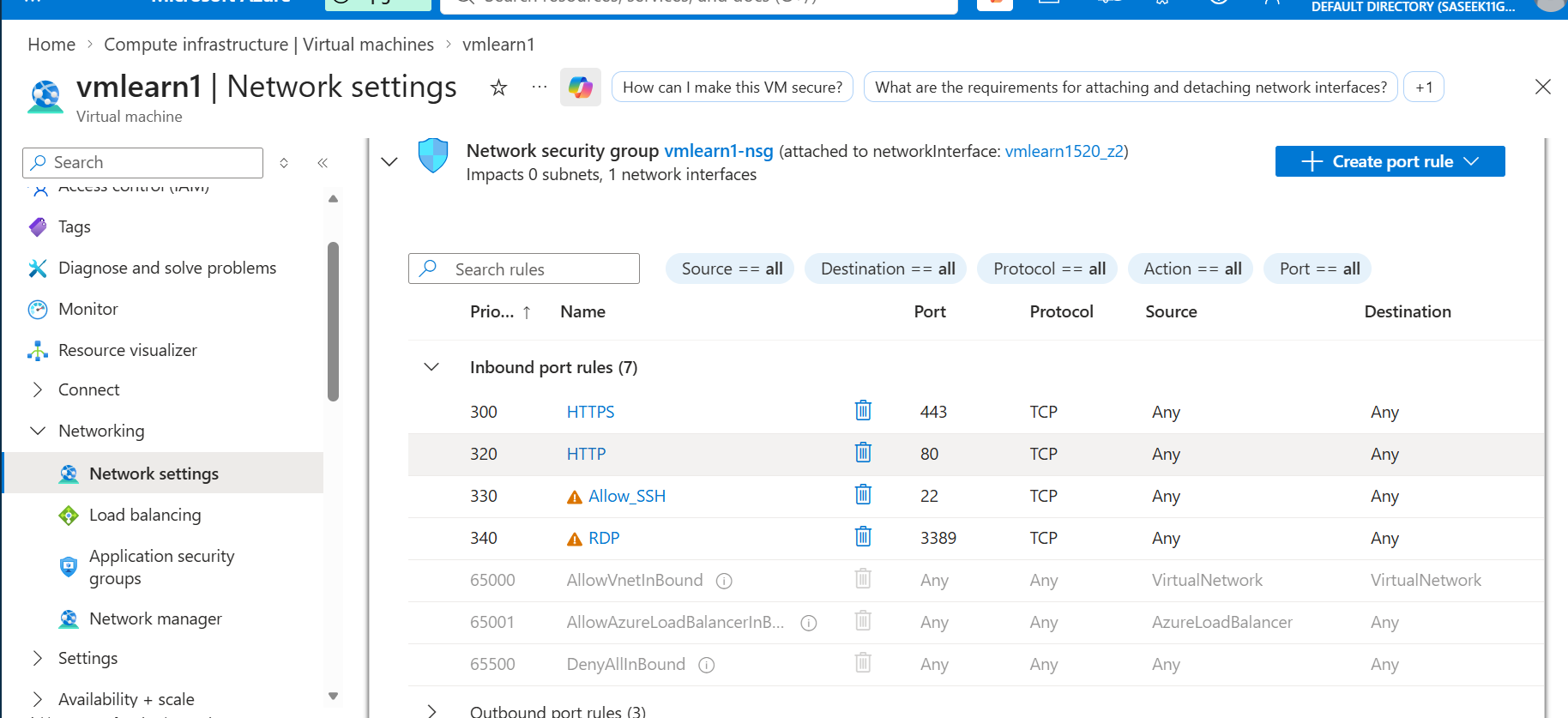
Go to VM dashboard → Select your VM → Network settings on the left.
Create on port rule button → Inbound port rule.
For SSH: port 22, protocol TCP, source *, action Allow.
For RDP: port 3389. Keep the priority around 300ish so it doesn’t get shadowed by something else.
Step 2 — install a desktop + Xrdp over SSH
Since Ubuntu won’t talk RDP natively, we need to SSH in first and bolt a GUI on manually. But there's a big gotcha: if you didn't configure your SSH key during VM creation, you won't be able to log in at all.
I made this exact mistake—here is how I fixed it and got connected:
On Windows, PowerShell: ssh-keygen -t rsa -b 4096 just hit enter through all the prompts.
Open
C:\Users\<you>\.ssh\id_rsa.pubin Notepad, copy everything.Back in the Azure Portal → VM → Help → Reset password.
Switch mode to Reset SSH public key, paste your key in, hit Update.
Open PowerShell locally:
ssh your_azure_username@<Your_VM_Public_IP>
(use the azure username you set up, not your laptop’s local one — I mixed this up first try, wasted 5 min confused why login kept failing)
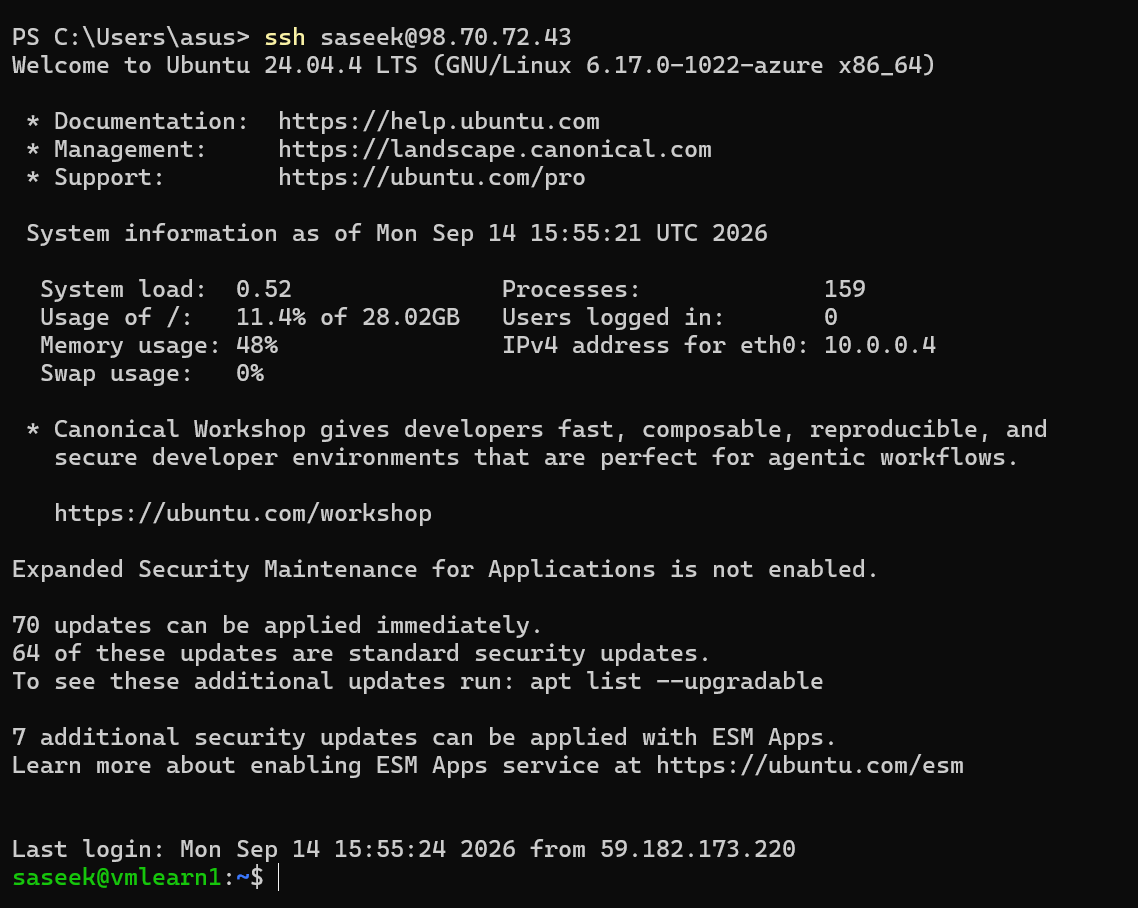
Run the following commands one at a time:
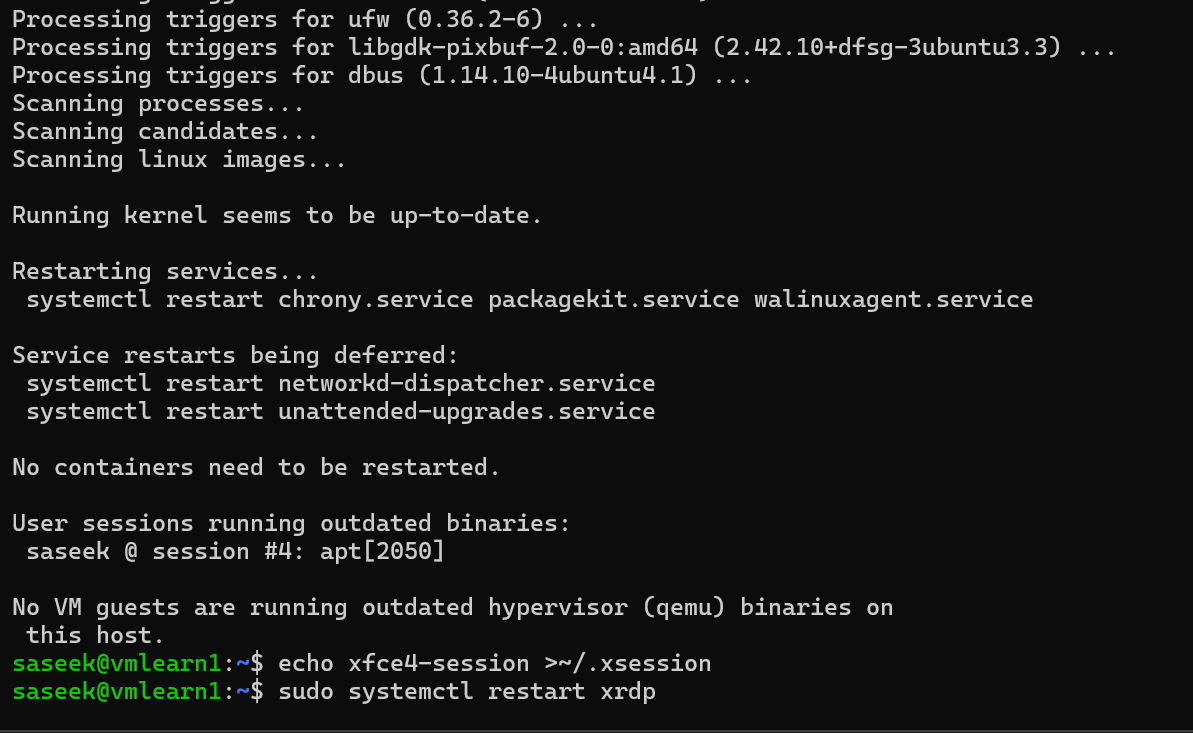
sudo apt update
sudo apt install xfce4 xfce4-goodies xrdp -y
echo xfce4-session >~/.xsession
sudo systemctl restart xrdp
XFCE because it’s lightweight — perfect for a 1GB box. Anything heavier and you’re back to the laggy Windows situation.
Step 3 — connect with Remote Desktop
Open the Remote Desktop Connection app on Windows.
Paste in your VM’s public IP, hit Connect.
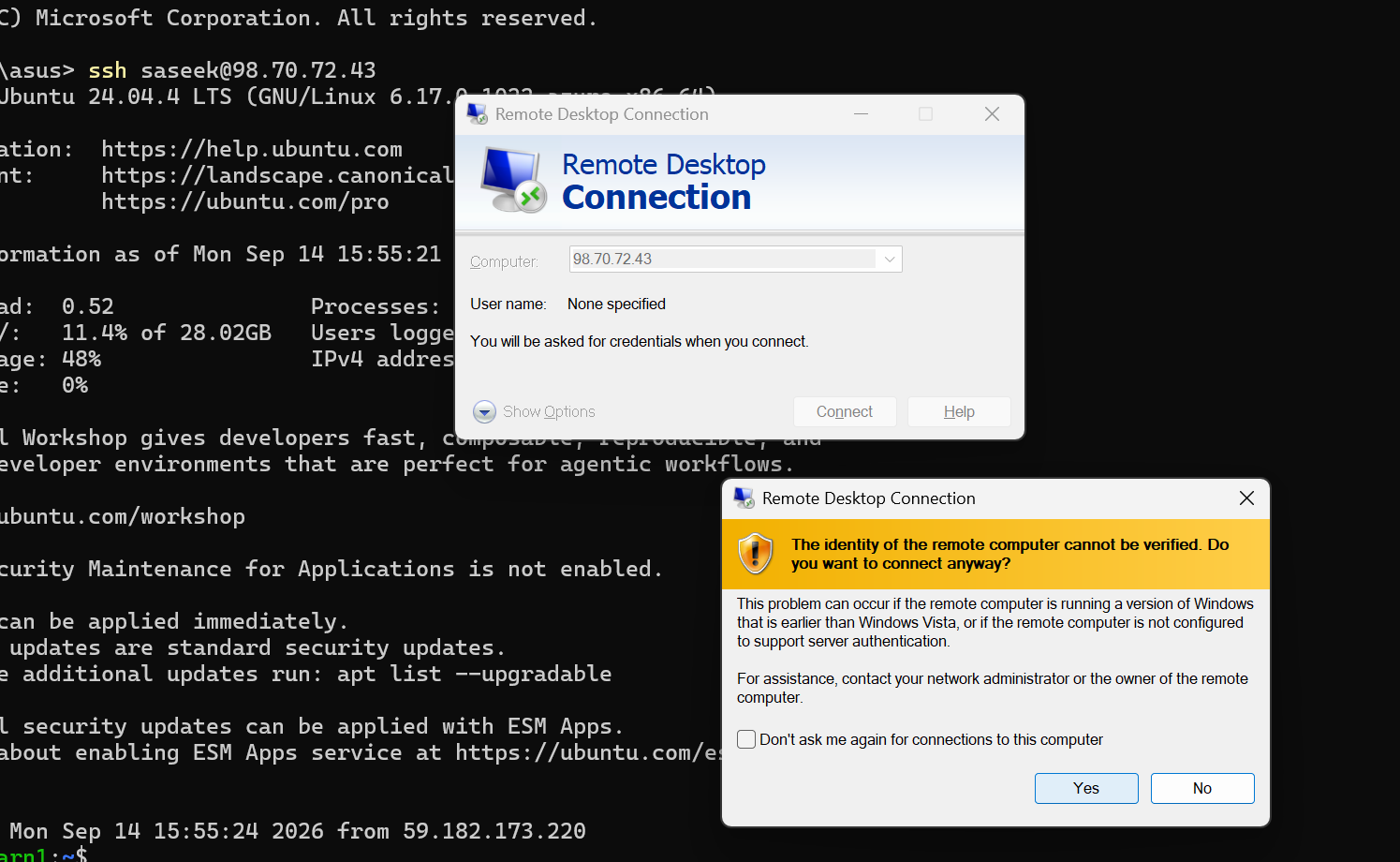
You’ll get a blue xrdp login screen — leave session type as Xorg.
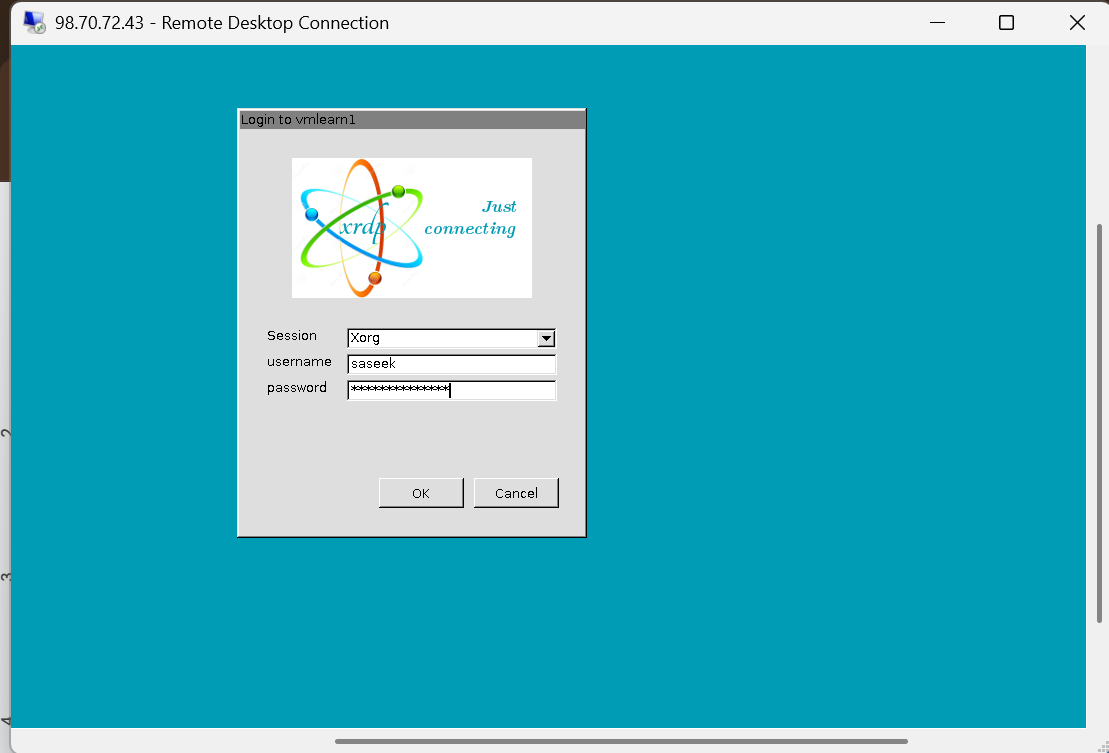
Username + password from VM setup.
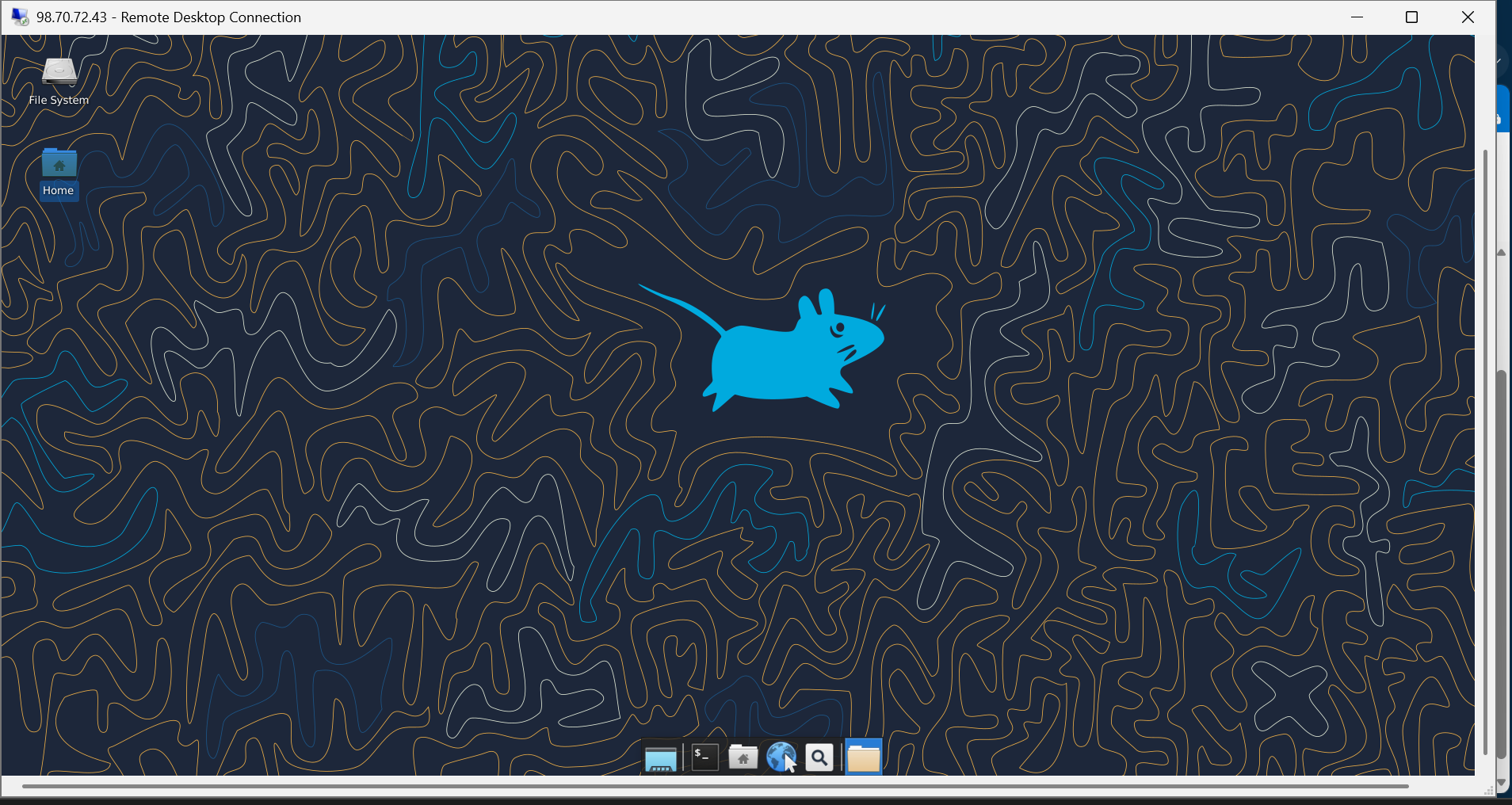
And that’s it, boom — full Ubuntu desktop, inside your RDP window, actually usable.
Honestly, the sizing/quota stuff was way more annoying than the actual technical setup. Once I knew which VM size to choose, this whole thing took like 15 minutes.
Anyone else hit the same free trial quota wall? Let me know in the comments below.